
Your delivery board says an order is still in production. Your database has said "shipped" since Tuesday.
Nobody did anything wrong. The order was updated in the system of record, exactly where it should be. It just never made it to the place the team actually looks. So someone updates the board by hand, or nobody does, and the board slowly becomes the thing people check and then verify somewhere else.
This guide fixes that with one flow. When a row changes in SQL Server, the matching monday.com item updates within minutes — every column you care about, not just one. No code. No new tables. No developer.
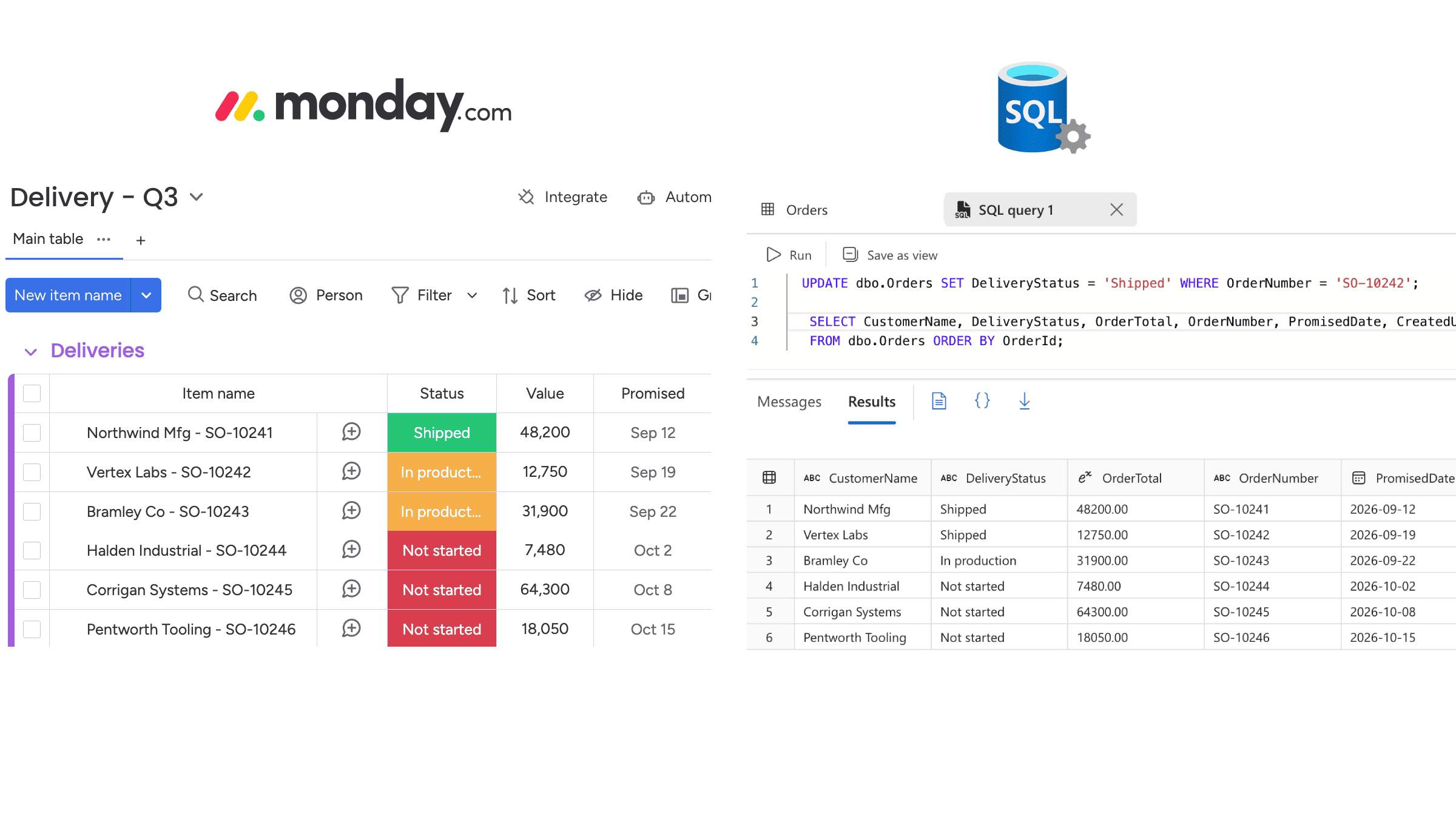
Look at Vertex Labs, order SO-10242. SQL Server records it as Shipped. The board still shows it as In production. Nobody will notice until a customer asks.
What we're building
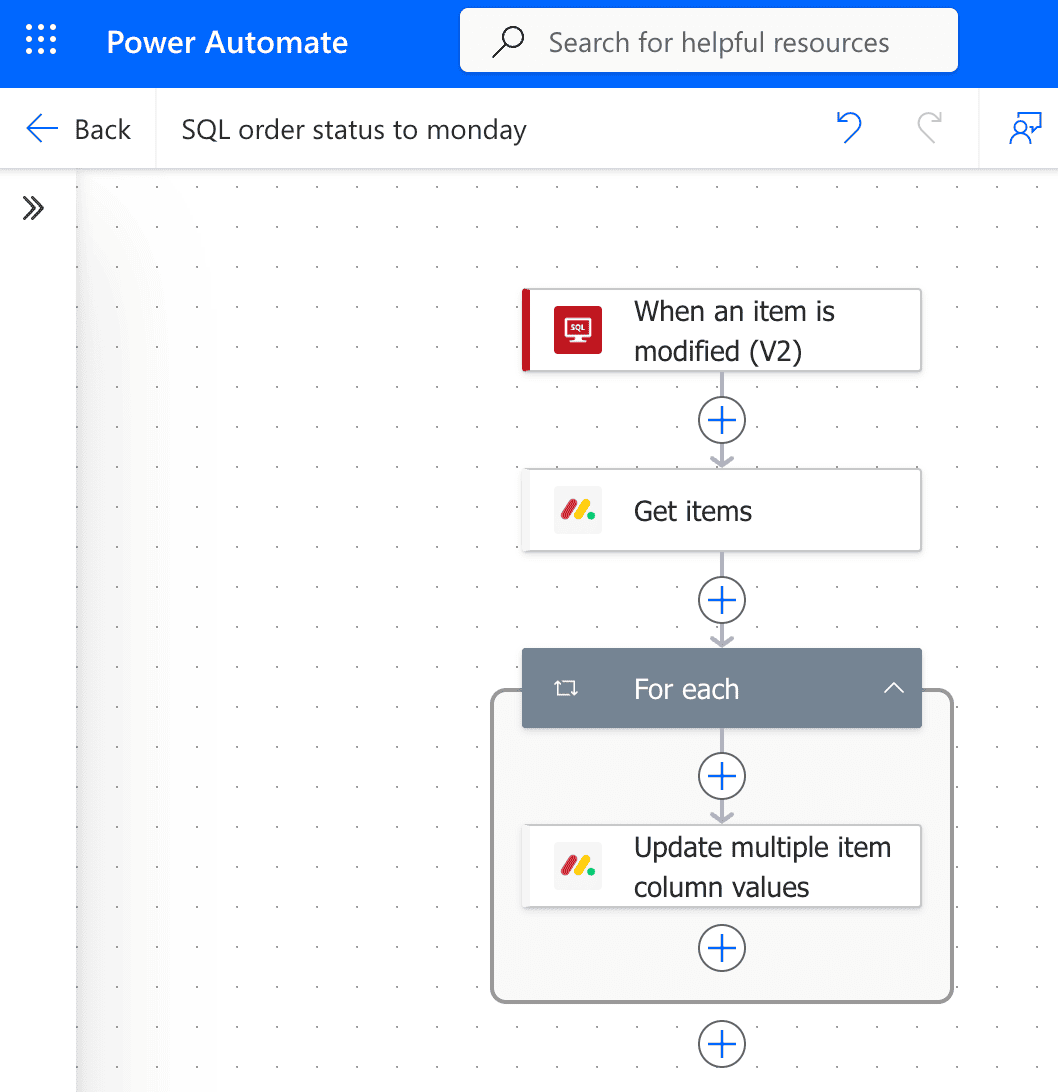
One flow, three steps. One card pushes every column you care about — not one field at a time.
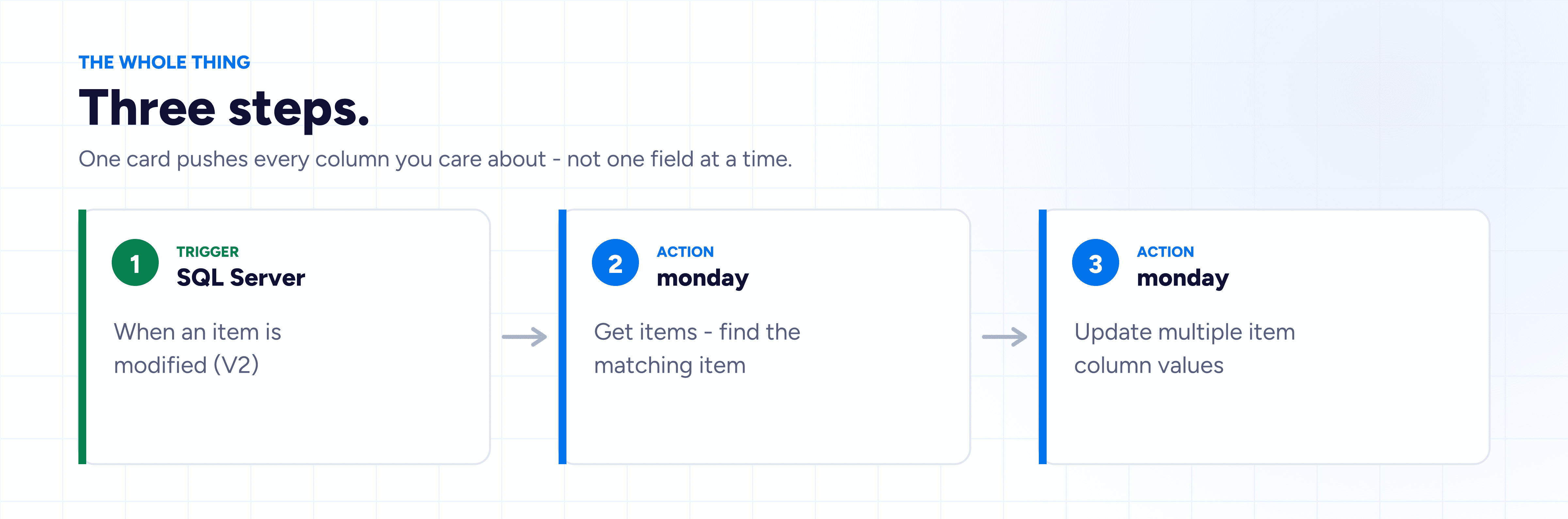
Since SQL Server and Power Automate are both Microsoft products, SQL Server has a built-in Power Automate connector. What's usually missing is the other end — a simple way to connect monday.com to Power Automate using native triggers and actions that understand boards, items, and columns. That's what Plugin Genie adds: 8 triggers and 17 actions that show up in the designer alongside everything else.
Before you start
There is one prerequisite. Your monday board needs an Order ID column, set to the Number type. This is what the flow uses to find the right item to update. The type matters: a Text column will accept the value without complaint and then fail every lookup, silently.
Nothing changes on the SQL side. You are not adding integration tables, and nothing is written back to your database.
Step 1: The trigger
Assuming your database table is called "Orders", create a new flow in Power Automate and add the SQL Server trigger "When an item is modified (V2)". Pick your server and database, then select Orders from the Table name dropdown.
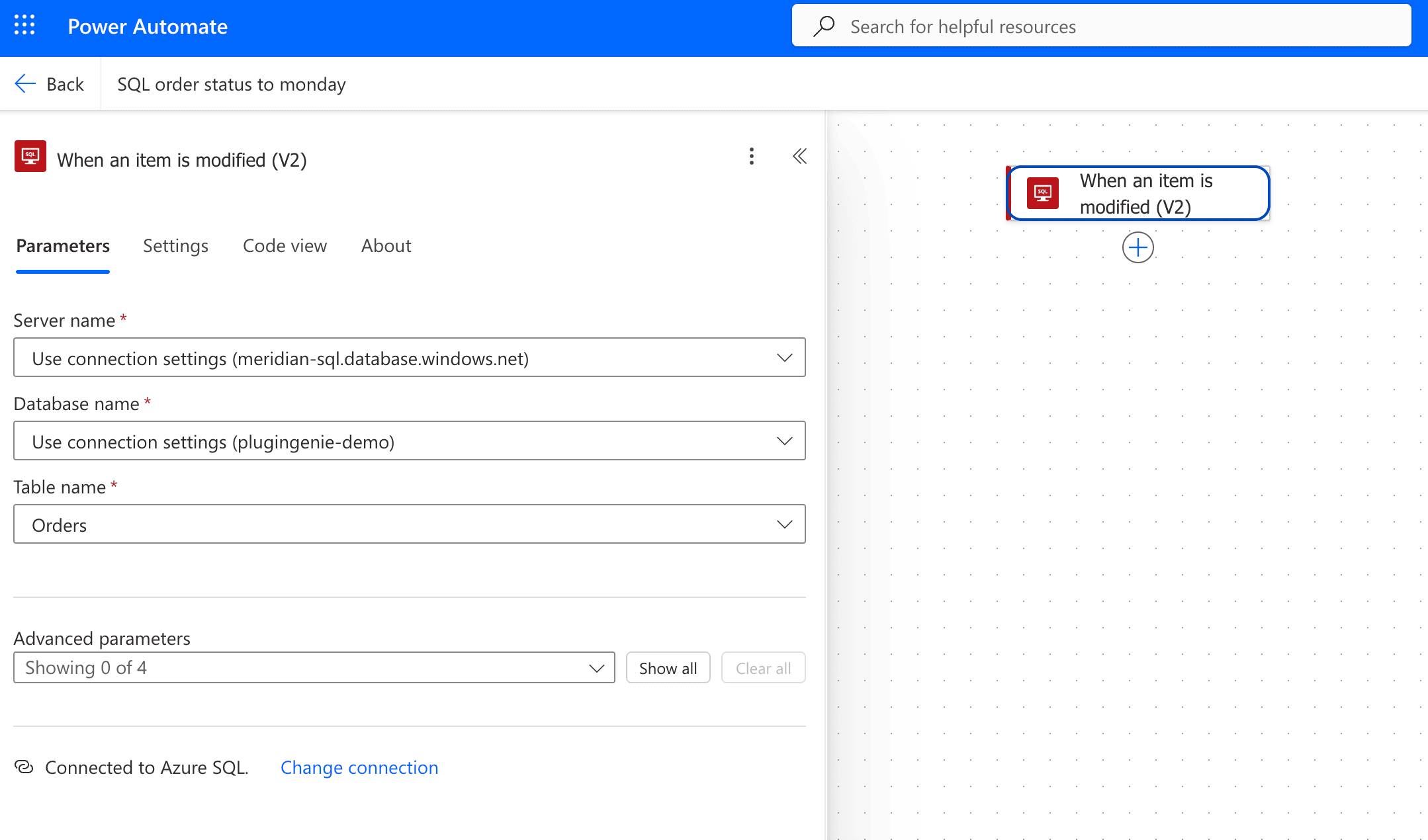
Worth knowing: this trigger polls. It isn't a database trigger and it doesn't fire the instant the row commits — it checks on an interval you set. Five minutes is indistinguishable from instant for an order status, and it is a great deal kinder to your database than anything faster.
The interval protects your SQL server, but it does not reduce what you spend on the monday side. That is driven by how many rows actually change, not by how often you look for them. Each changed row costs two executions — one to find the item, one to update it — and those count against your app subscription's monthly allowance.
The trigger fires on any change to the row, not just the one you had in mind. That's fine here — because you're pushing the whole row, you don't need to know which column moved. You're mirroring current state, not reacting to a specific edit.
Step 2: Find the matching item
Add the monday "Get items" action. Pick the workspace, board, and group from the dropdowns. The connector reads your live board schema, so you're choosing real boards and real columns rather than typing IDs into a config file.
Then open Advanced parameters and set a filter: Column to Order ID,
Operator to Any of, and Value to the OrderId token from the trigger.
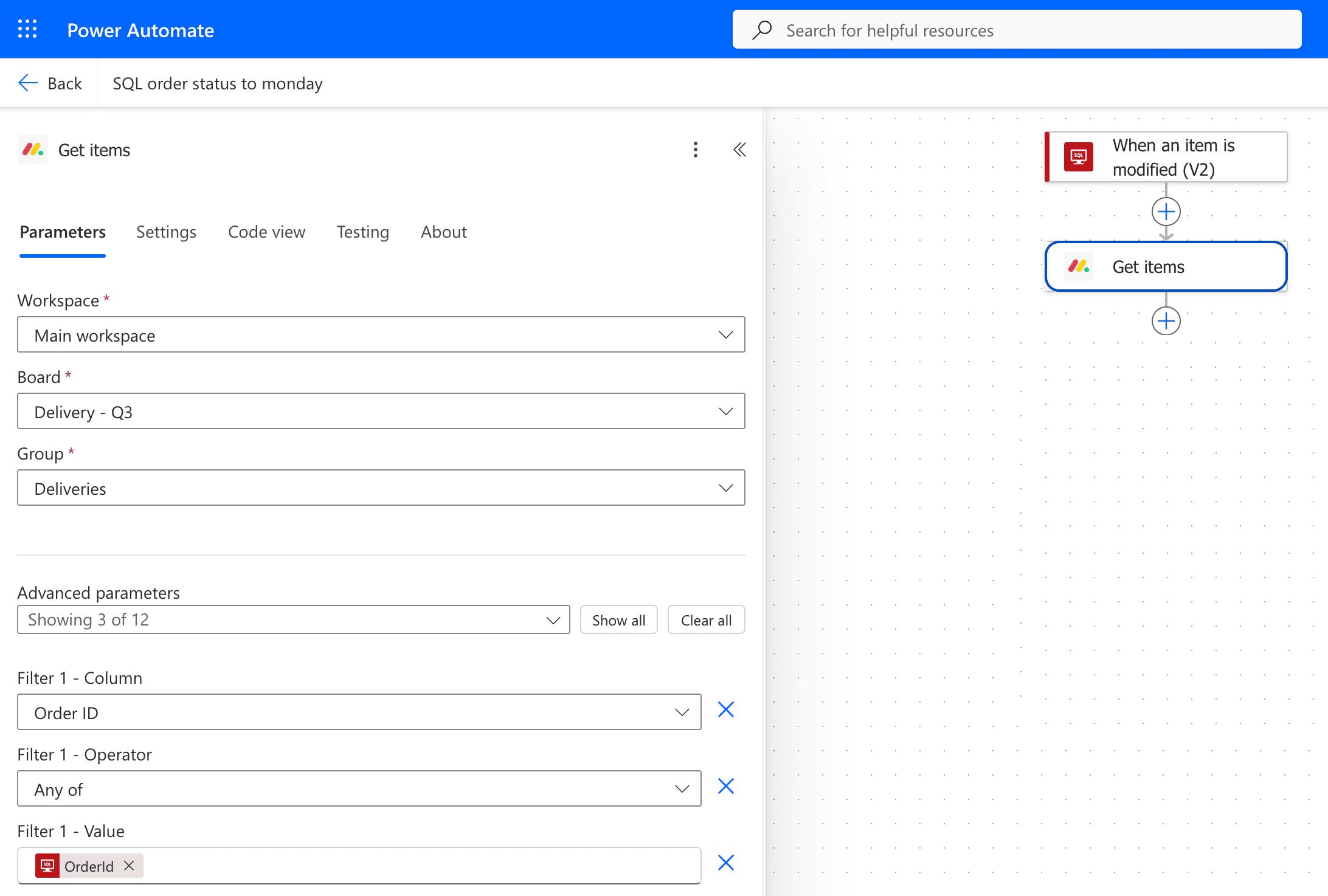
Match on the ID, never on the customer name. Names get edited, duplicated, and typo'd; IDs don't.
Step 3: Push the whole row
Add the monday "Update multiple item column values" action. Bind the Item ID to the output of Get items, then map every column you want kept current in a single card:
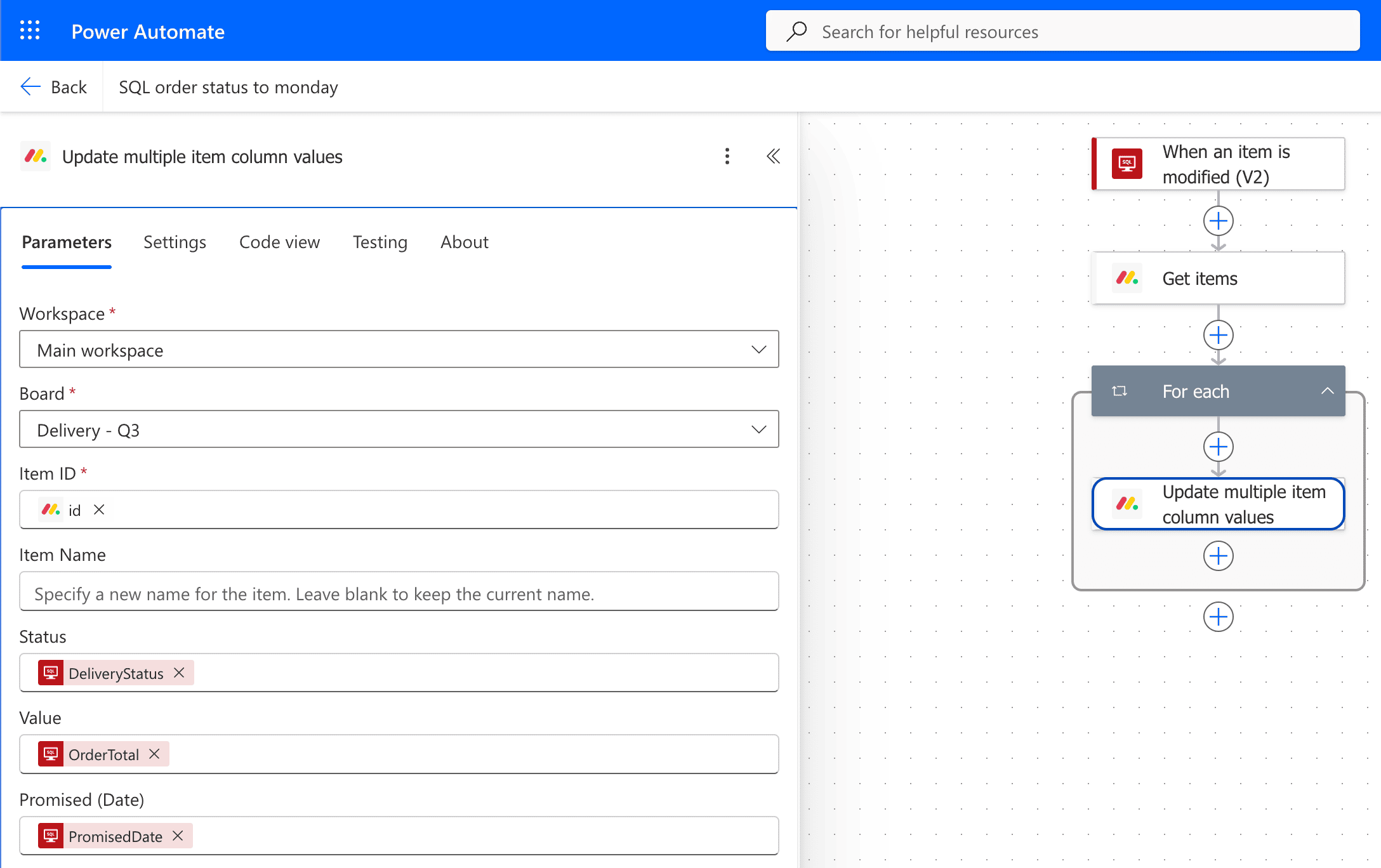
| monday column | SQL field |
|---|---|
| Status | DeliveryStatus |
| Value | OrderTotal |
| Promised | PromisedDate |
Use this rather than chaining several "Update an item's column value" actions. One card, one API call, and adding a fourth column later is a new row in the mapping rather than a new step in the flow.
Power Automate will probably wrap this step in a For each loop on its own. That's expected — Get items returns a list, and Power Automate handles lists that way. Your filter matches one item, so the loop runs once. Leave it alone.
That's the whole flow.
Three things that trip people up
Dates need to be YYYY-MM-DD, in UTC. monday.com stores everything in UTC and will
accept a badly formatted date by leaving the field blank rather than erroring. If your database writes local time,
put a Convert time zone action in front of the mapping.
Status values must match your board's labels exactly. If the SQL value is SHIPPED and
the board label is Shipped, nothing happens. Map the values explicitly rather than passing the raw
string through.
Watch out for empty SQL fields. A NULL in the database will clear the monday column
rather than leave it alone. If some fields are legitimately blank in SQL and shouldn't wipe the field, keep them out
of the mapping.
When this isn't the right tool
This pattern has a ceiling, and it is worth knowing where that ceiling sits before you build on it.
The flow runs once for every changed row. On a table that sees a few hundred changes a day, that is entirely fine. On a table that sees thousands of changes an hour — a high-volume transactional system, a table that an integration job rewrites constantly, or anything with frequent bulk updates — it becomes the wrong approach. Every changed row spends two executions against your subscription's monthly allowance, and monday applies its own API rate limits on top of that. Long before you reach either ceiling, you will have a run history that nobody can usefully read.
At that volume, the pattern should be inverted. Build a scheduled flow that runs every fifteen minutes, pulls all rows changed since the last run using Get rows (V2), and updates them in a single batch. You trade some latency for a dramatic reduction in API calls, and you get one run to inspect rather than four hundred.
There is also a middle option. If your table changes frequently but the columns you are syncing rarely do, add a Condition before step 3 that compares the monday values against the SQL ones and updates only when they differ. It costs one extra card in the flow, and in return a modification that does not touch your synced columns costs you nothing at all.
What this gets you
| Before | After | |
|---|---|---|
| Board reflects reality | When someone remembers | Within minutes |
| Who updates it | A person | Nobody |
| Syncing another field | Re-do the export template | One row in the mapping |
| "Which system is right?" | A meeting | Not a question |
Where to take it next
The flow you have just built has room in it. Anything you add after step 3 runs on the same trigger, with the order data already in hand.
The most common addition is a notification for people who do not live in monday.com. Power Automate has native Teams and Outlook connectors, so posting a Teams message or sending an email when an order ships is one more action on the end of this flow — not a second flow, and not a second trigger.
Two others worth knowing about. monday's Create an update action will post the change as a comment on the item itself, which gives you a visible audit trail of what the database changed and when. And the same three-step shape covers a lot of other ground: new rows creating items, inventory thresholds raising purchasing tasks, or records failing validation becoming an exceptions board with an owner and a due date. Same trigger, same two actions, different table.
Getting started
You'll need:
- An active monday.com account
- The Microsoft Power Automate app installed from the monday marketplace
- At least one Power Automate Premium licence (SQL Server and monday.com are both premium connectors)
- Power Automate Cloud — Power Automate Desktop isn't supported
- SQL Server — on-premises via a data gateway, or Azure SQL without one
Plugin Genie comes with a 14-day free trial. This flow takes about twenty minutes to build.
Start your free trial on the monday.com marketplace →
Need help that the documentation doesn't cover? Reach out to our support team — we're happy to help.