
A task on your monday board stalls because it needs the support team. Someone leaves a note that says "waiting on support" and moves on. But the support team works in Zendesk, and no one actually opened a ticket, so nothing is really waiting on anything. The task just sits.
Days later, someone asks why it never moved. The honest answer is that filing a ticket meant leaving monday, switching tools, and retyping everything, so it kept slipping down the list. The work fell into the gap between the board people live on and the help desk they needed.
The fix is to let the board raise the ticket itself. When an item is flagged for support, a Zendesk ticket is created automatically, and when support solves it, the item on the board updates on its own. This guide sets it up with two flows: one that turns a flagged board item into a ticket, and one that brings the solved ticket status back into monday.
Meet Flo's Flowers
Flo's Flowers is a flower-delivery company that runs its billing on a monday board called Flo's Flowers - Invoices, while its support team works in Zendesk. When an invoice needs the support team - a disputed charge, a correction, or a question the billing owner cannot answer alone - someone sets the item's status to Needs Support. Today, that is where it stalls, because a person still has to open a ticket by hand.
The goal is for that flag to open a real ticket in Zendesk, with the item's details, without anyone switching tools.
What we're building
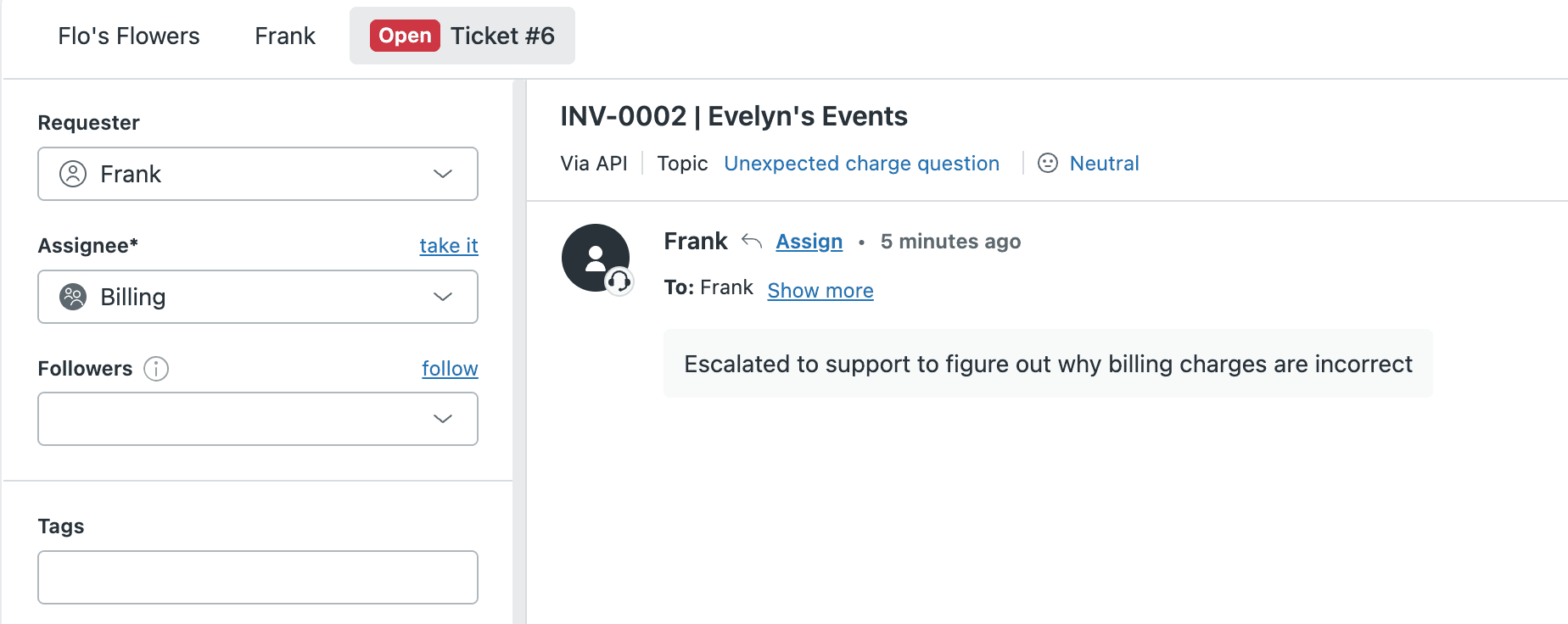
When a board item's status is set to Needs Support, a matching Zendesk ticket is created from the item's details. When that ticket is solved, the board item updates to Resolved on its own. The first direction happens the moment the status changes; the second is an optional bonus that mirrors a solved ticket back to the board.
Power Automate moves the information between the two apps. This time the flow starts in monday, where Plugin Genie provides triggers that read your board cleanly, so it fires exactly when a status changes, and Zendesk just has to create the ticket. An optional bonus flow listens for ticket changes to mirror the resolution back. Everything is built by choosing options from dropdowns.
How the two apps stay linked
The link is one value: when the Zendesk ticket is created, its number is written onto the monday board item. The return flow uses that number to find the right item when the ticket is solved. That single reference is all the connection the two apps need.
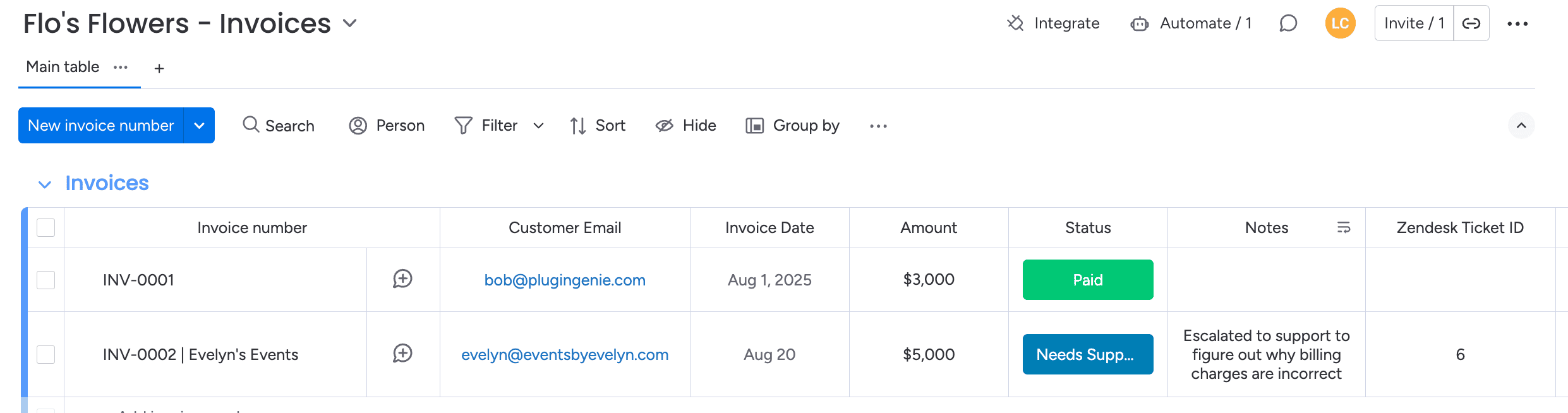
Setup is minimal, and all on the monday side. Add a column called Zendesk Ticket ID and set its type to Numbers. Give the Status column two values the flows use: Needs Support (what a person picks to flag an item) and Resolved (what the bonus flow sets when the ticket is solved). On the Zendesk side there is nothing to build - tickets are created the normal way.
Worth getting right: make the Zendesk Ticket ID column a Numbers column, not Text. A Text column will accept the number and then quietly fail to match it later, which is a hard problem to spot after the fact.
Raise the ticket
This flow watches the board, and opens a Zendesk ticket when an item is flagged for support. In Power Automate, create a new automated cloud flow and add these steps.
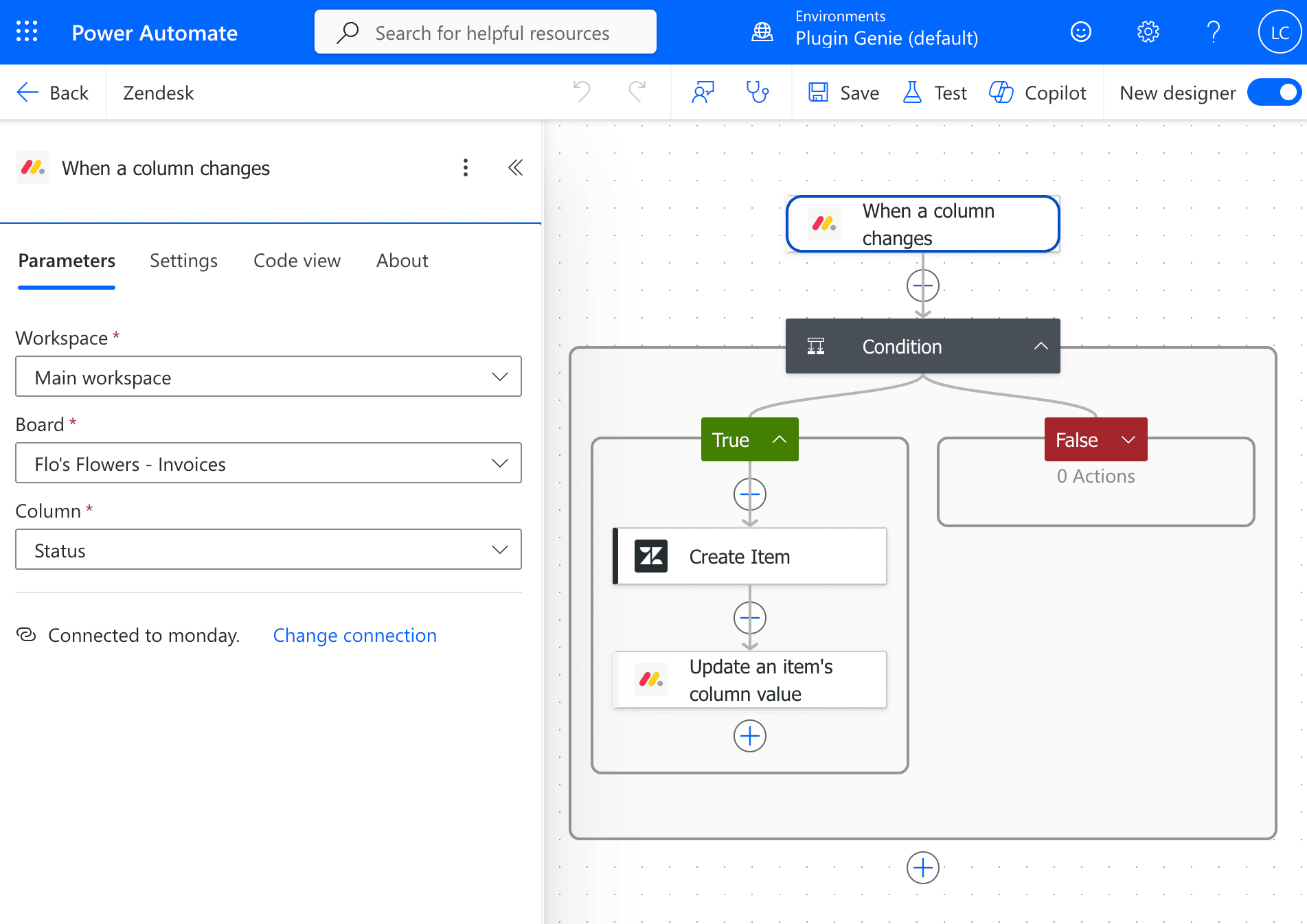
1. Add the monday trigger. Add the trigger When a column changes (provided by Plugin Genie) and point it at the board's Status column.
| Field | Value |
|---|---|
| Board | Flo's Flowers - Invoices |
| Column | Status |
This fires whenever the Status changes; the next step limits it to only fire when the Status changes to Needs Support.
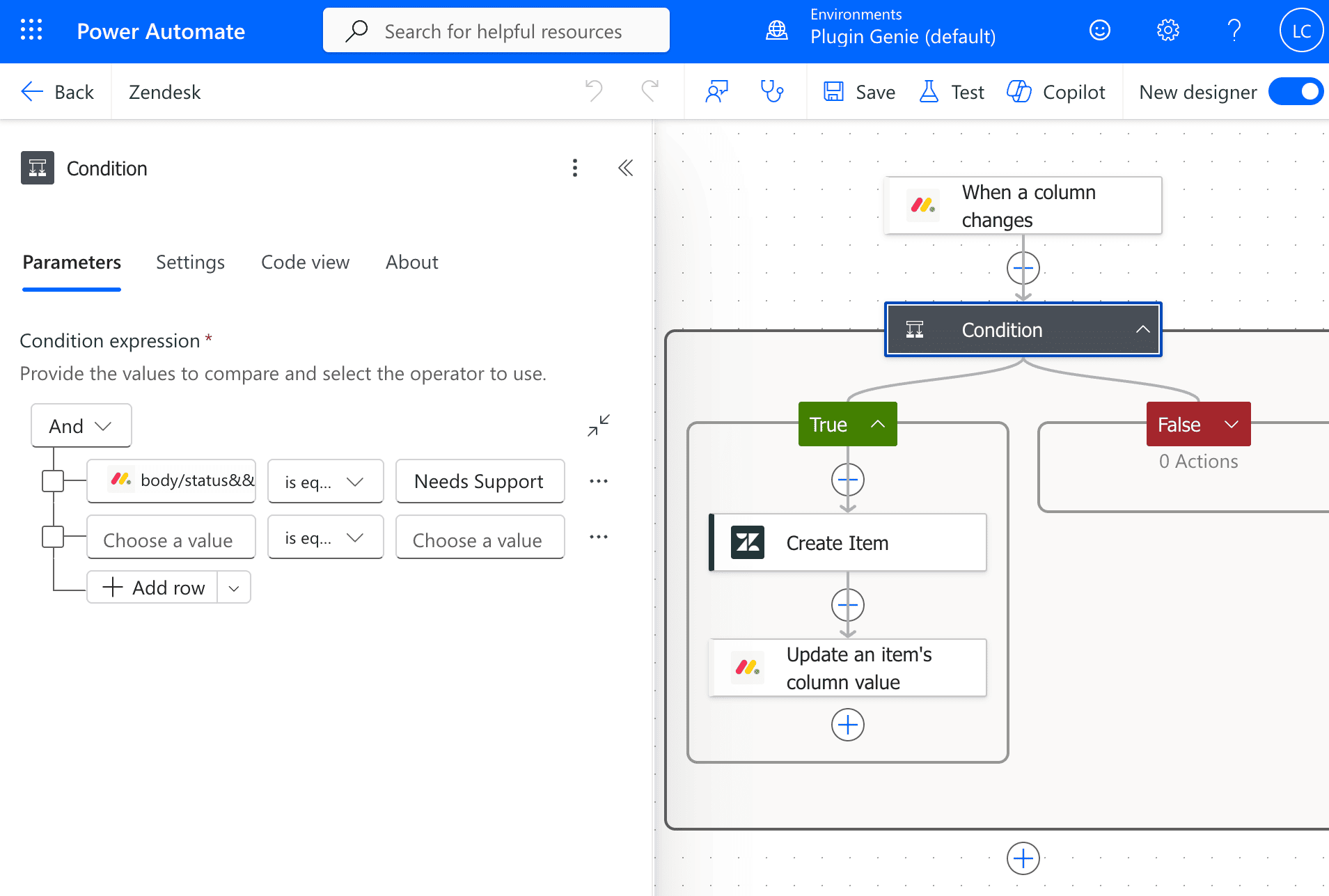
2. Only fire when Status = Needs Support. Add a Condition that checks the Status field. Set the left side to Status, the operator to is equal to, and the value to Needs Support.
Put the next two steps in the True branch.
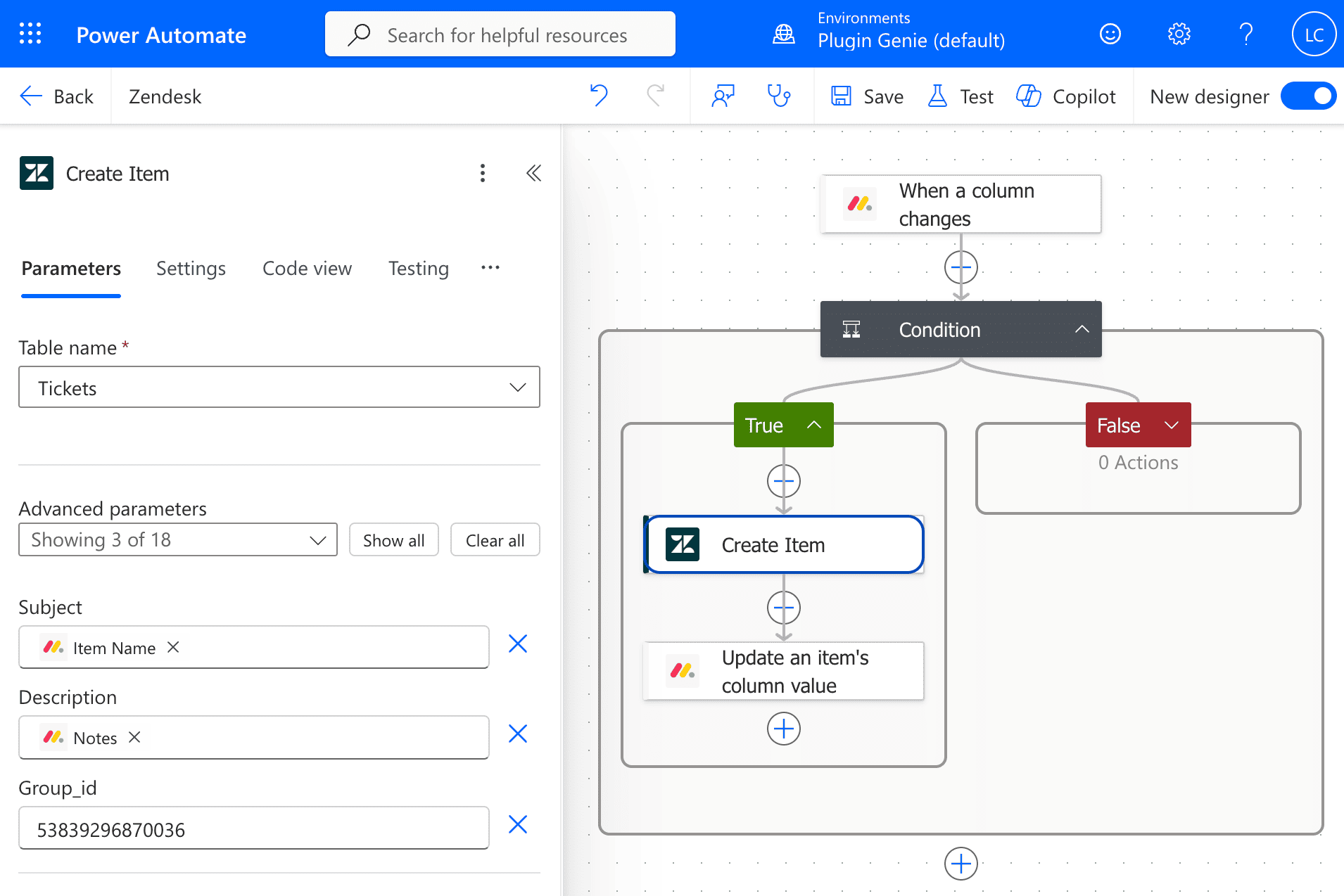
3. Create the Zendesk ticket. Add the Zendesk action Create Item and set the table to Tickets. Next, build the ticket from the monday board item. Set the Group ID so it lands in the Billing team's support queue.
| Field | Value |
|---|---|
| Table name | Tickets |
| Subject | Item Name |
| Description | Notes |
| Group ID | Billing group id |
The Support Group ID is numeric - see the note below on where to find it.
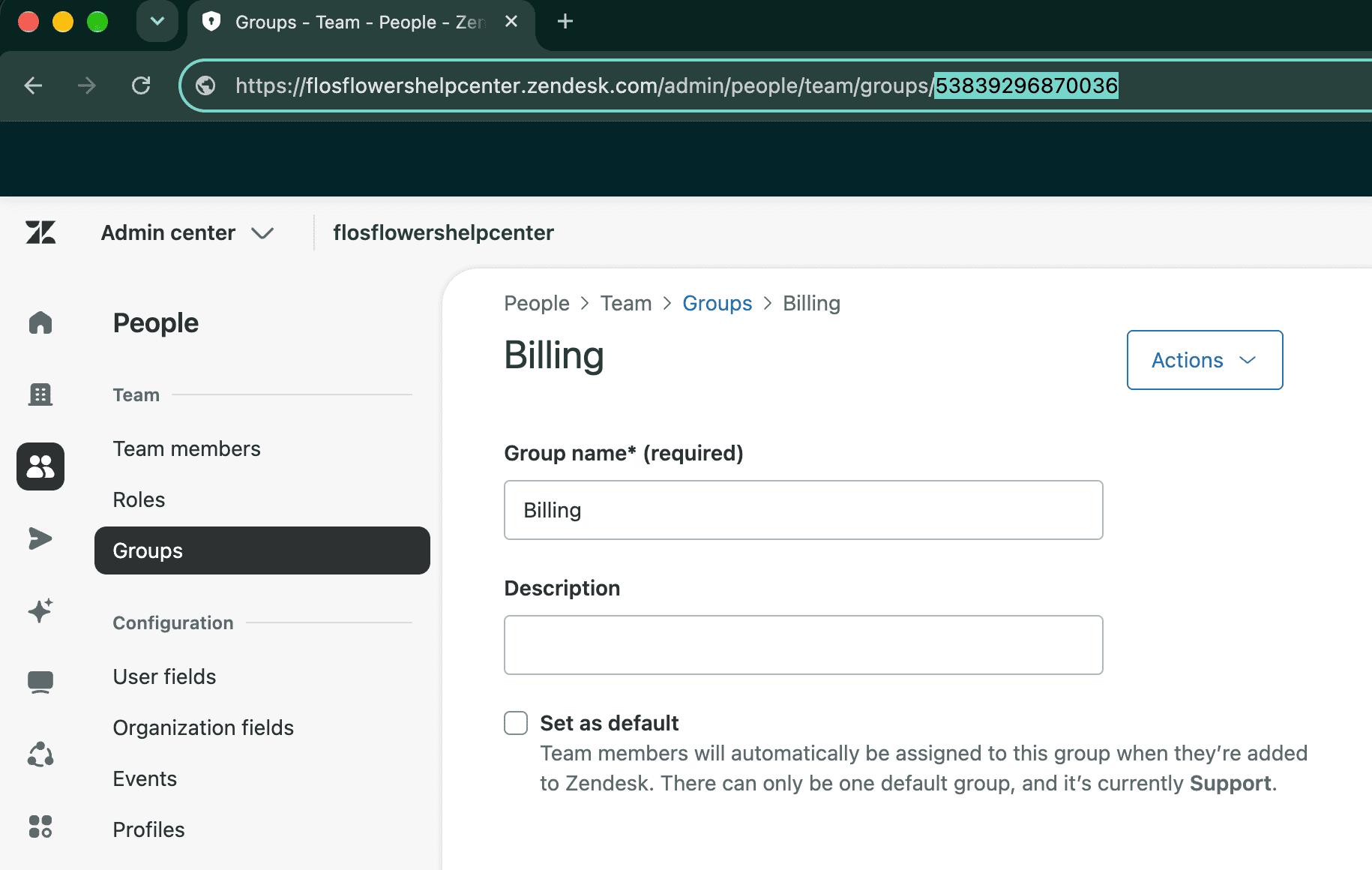
Finding your Billing group ID. Zendesk uses a numeric ID for the group, and it is easiest to read
straight from the URL. In Zendesk, open Admin Center → People → Team → Groups, then click your
Billing group. The address bar will end in something like /groups/53839296870036 - that number is the
Group ID you paste into step 3. (If you would rather not hardcode it, add a Zendesk Get items on
the Groups table filtered by name and use the returned id, but for one fixed group the URL is
quicker.)
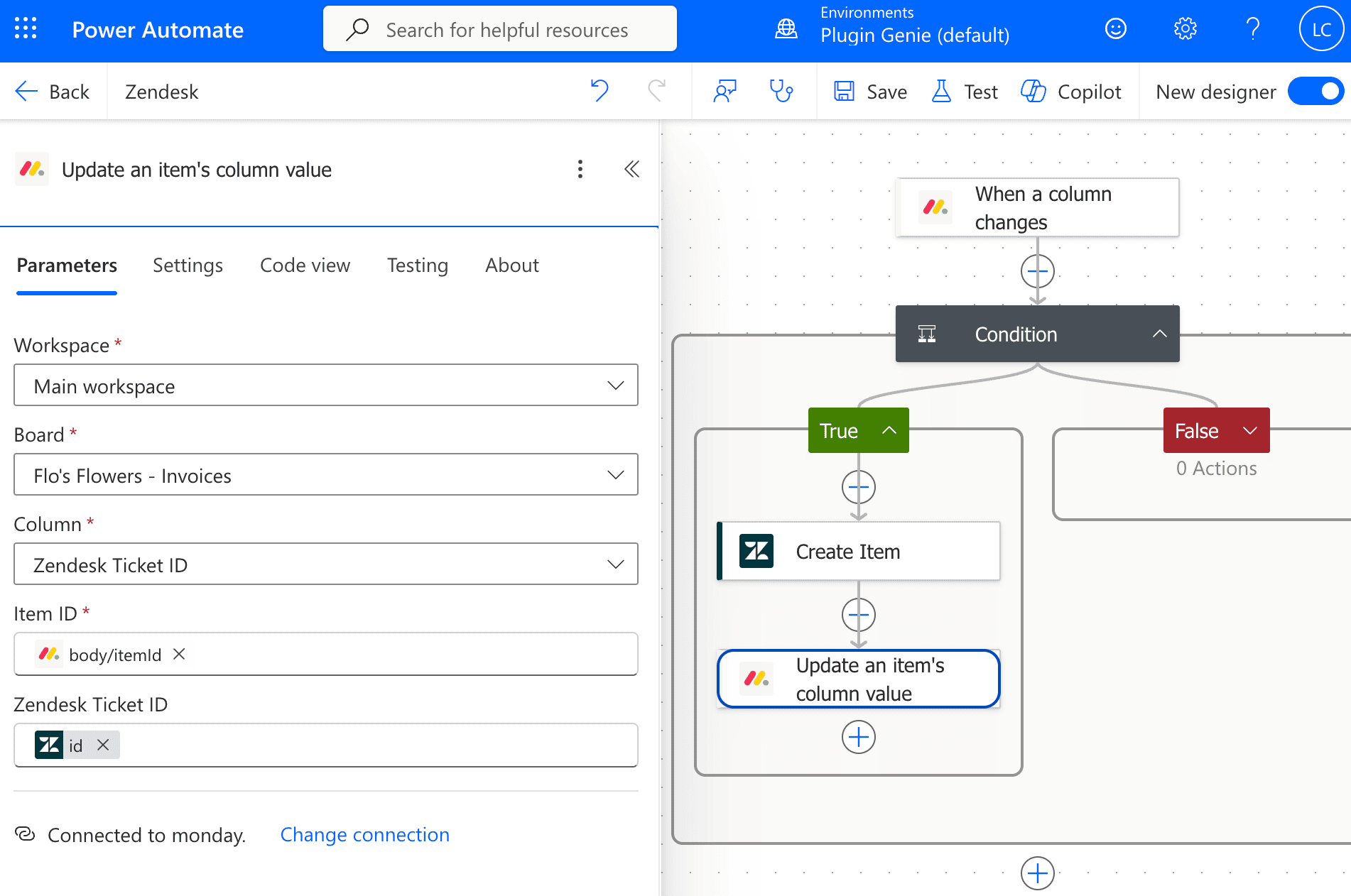
4. Write the ticket number back to the board. Add the monday.com action Update an item's column value to record the new ticket on the item it came from.
| Field | Value |
|---|---|
| Board | Flo's Flowers - Invoices |
| Item ID | body/itemId (from trigger) |
| Column | Zendesk Ticket ID |
| Value | id (from Create Item) |
This stores the ticket's id in the Zendesk Ticket ID column, the link both flows rely on. Since the trigger fires only when Status changes and this writes a different column, it will not set the flow off again.
Close the loop automatically
Flow 1 gets the ticket raised. The natural next step is the reverse: when support resolves the ticket, the board item updates itself, so no one has to go and tick it off by hand.
The concept is the mirror image of what you just built. Instead of monday reacting to a board change, a second flow reacts to a Zendesk change - when a ticket is solved, it finds the board item that carries that ticket's number and flips its status to Resolved. Because it compares the two systems' current state rather than trying to track what changed, it stays simple and safe to re-run.
The pieces you would reach for are a Zendesk When an item is modified trigger, a monday Get Items action to find the matching item by its Zendesk Ticket ID, and a monday Update an item's column value to set the status. The one thing worth planning up front is how the two IDs point at each other - the same join key from earlier is what makes the match possible.
What this gets you
Once both flows are running, the board and the help desk stay in step without anyone copying work between them. A flag on the board opens a real ticket, and a solved ticket quietly closes the loop.
| Before | After | |
|---|---|---|
| Opening a ticket | By hand, when someone remembers | Automatic, the moment the item is flagged |
| The item while support works | A stale note on the board | Linked to a real ticket by number |
| Knowing it is resolved | Ask support, or go check Zendesk | The item flips to Resolved on its own |
| Leaving your tools | Switch to Zendesk to file it | Never leave the board |
Other ways to start from the board
The forward flow works for any moment where a board item should become a ticket. Usually all you change is the trigger and the field you map.
New items become tickets. On an intake board, use the When an item is created trigger so every new row opens a ticket, with no status step at all.
Form submissions become tickets. A monday form response lands as an item, which turns into a ticket the support team owns, with the submitter as the requester.
Outreach lists. A board of customers to contact spawns one ticket per row for an agent to work through.
Getting started
You'll need:
- An active monday.com account with the Microsoft Power Automate app installed from the marketplace
- At least one Power Automate Premium licence, since Zendesk and monday.com are both premium connectors
- Power Automate Cloud, as the desktop version isn't supported
- A Numbers column and a few Status values on your board
- A Billing group in Zendesk for tickets to land in (any group you want to route to)
Everything in this guide is built with dropdowns, so there is no code to write. Plugin Genie comes with a 14-day free trial, and the first flow takes about twenty minutes to set up.
Start your free trial on the monday.com marketplace →
Need help that the documentation doesn't cover? Reach out to our support team — we're happy to help.