
Copy a prompt into your AI tool, and it builds this flow in Power Automate for you. New to building with AI?
-
Check you have these in place
- A monday Item ID Text field on the Salesforce Opportunity object (API name
Monday_Item_ID__c) - A Salesforce Opportunity ID Text column and a Kickoff Needed status label on your monday.com board
- Your connections signed in to Power Automate, including monday
- A monday Item ID Text field on the Salesforce Opportunity object (API name
-
Copy the prompt
Using the Plugin Genie monday connector: when a Salesforce opportunity is modified, its stage is Closed Won and its "monday Item ID" field is empty, get the account name and the owner's name, create an item on my monday.com board "Customer Onboarding" in the group "New Customers", write the new item's ID back to the opportunity's "monday Item ID" field, and post a message about the new customer in the Teams channel "Project Updates".Swap in your own board and channel names, then paste it into Create with Copilot in Power Automate. Copilot guide
/power-automate:build-flow Build a flow that runs when a Salesforce opportunity is modified, with the filter StageName eq 'Closed Won' and Monday_Item_ID__c eq null. Get the Account record and the owner's User record to look up their names. Using the Plugin Genie monday connector, create an item on the board "Customer Onboarding" in the group "New Customers": item name = account name, Deal Value = Amount, Start Date = Close Date, Account Executive = owner's full name, Salesforce Opportunity ID = opportunity ID, Status = "Kickoff Needed". Then update the opportunity's Monday_Item_ID__c field with the new item's ID, and post a message to the Teams channel "Project Updates" with the account name, amount, owner and a link to the new item.Swap in your own board and channel names, then paste it into Claude or GitHub Copilot CLI with the Power Automate plugin installed. Claude guide
-
Test it
Run it once with a test record, then turn it on.
A deal closes in Salesforce. The account executive updates the stage, celebrates for a minute, and moves on to the next one. The onboarding team, working in monday, finds out whenever someone remembers to tell them.
Usually that means an email or a Teams message sent a day or two later, and someone retyping the details into a new item on the onboarding board. Sometimes the deal value comes across wrong. Sometimes the email never gets sent, and a new customer waits a week for a kickoff call nobody scheduled.
This guide closes that gap with one flow. When an opportunity reaches Closed Won, a filled-in onboarding item appears on your monday board and the onboarding team gets a message in Teams. No code, and nobody has to remember anything.
Meet Tidewater HR
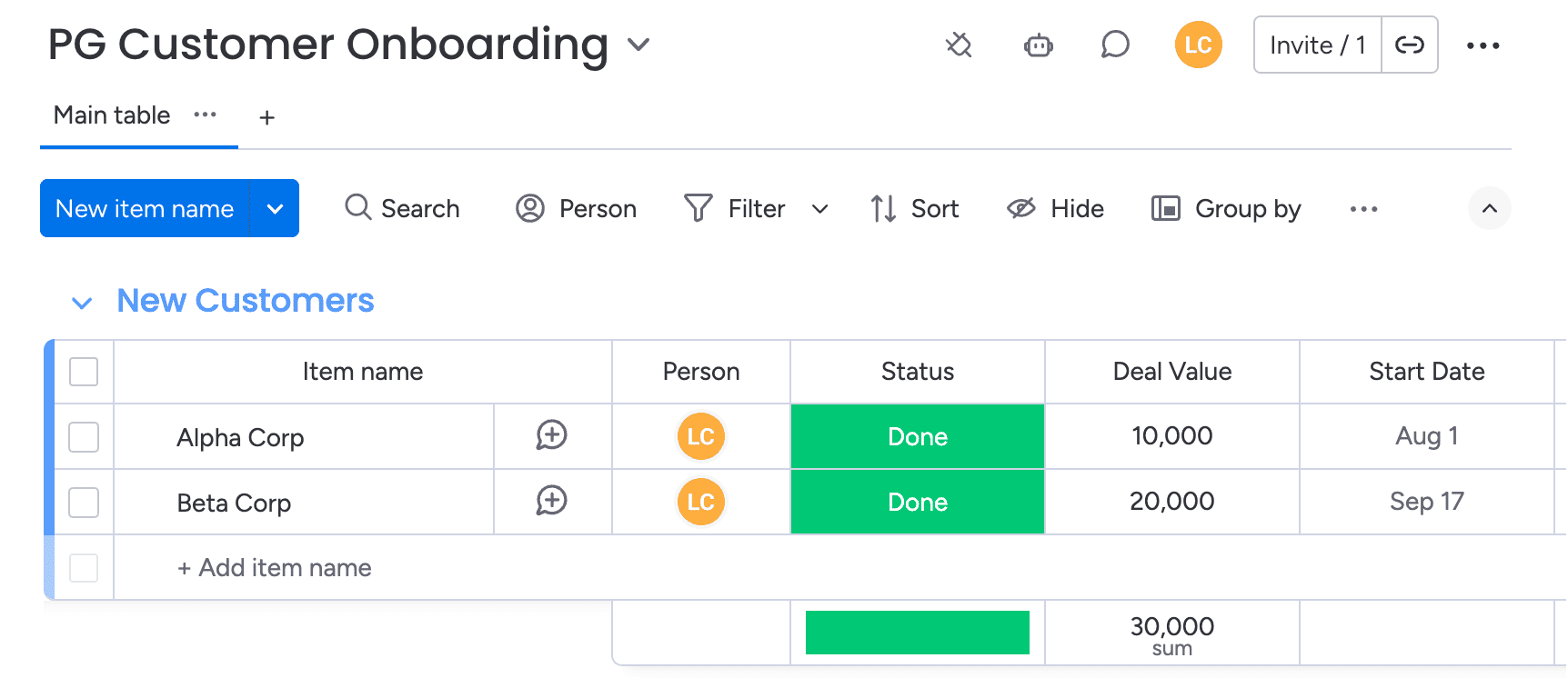
Tidewater HR sells HR and payroll software to mid-sized businesses. The sales team runs its pipeline in Salesforce. The implementation team runs every new customer from a monday board called Customer Onboarding, with one item per customer and columns for the deal value, start date, account executive, and status.
When Dana, one of the account executives, marks the Acme Corp opportunity as Closed Won, she is supposed to email the implementation lead with the details. On a busy week that email waits, and Acme waits with it.
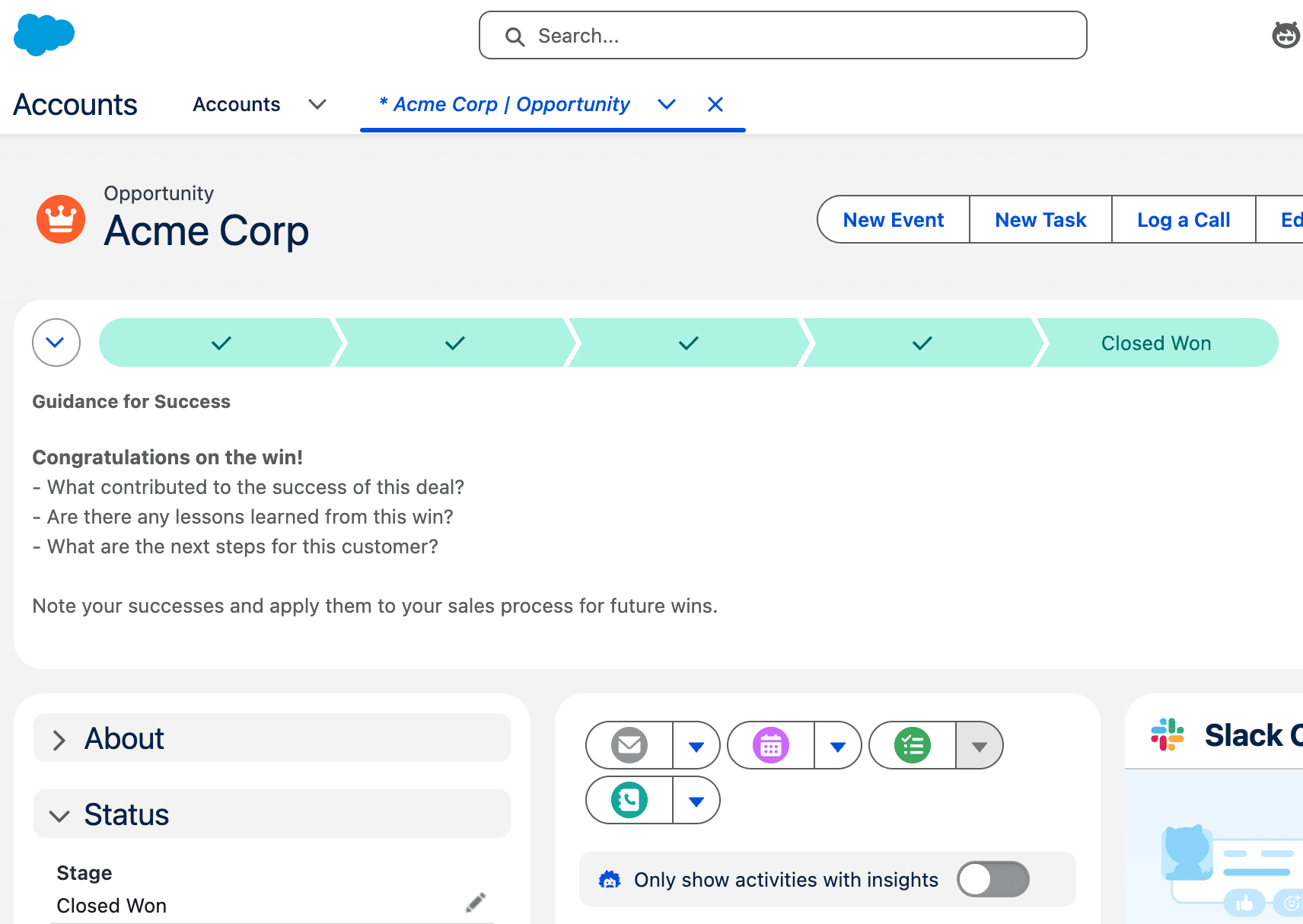
The goal is for that stage change to be the whole handoff. Dana marks the deal won, and everything after that happens on its own.
What we're building
One flow, five steps. Salesforce starts it, Plugin Genie creates the item in monday, and Teams tells the people who need to know.
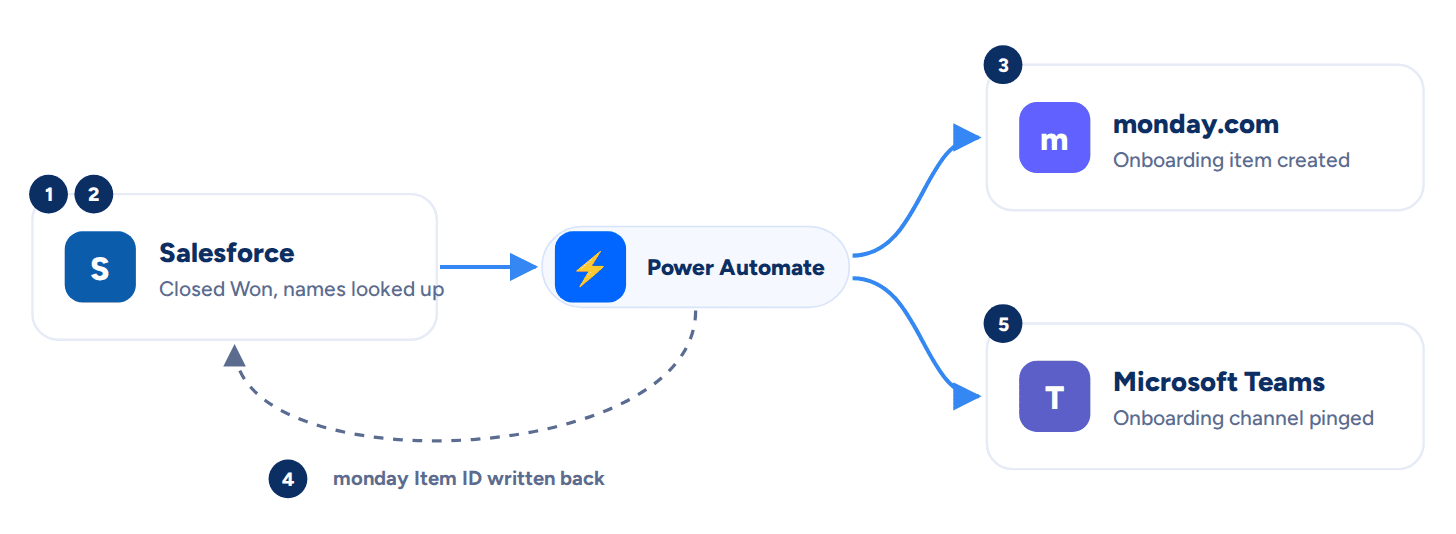
Salesforce has its own Power Automate connector, and so does Teams. What's usually missing is the monday end, a simple way to work with boards, items, and columns from inside Power Automate. That's what Plugin Genie adds: 8 triggers and 17 actions that show up in the designer alongside everything else.
Before you start
There are two small pieces of setup, one on each side.
In Salesforce, add a custom field to the Opportunity object called monday Item
ID (API name Monday_Item_ID__c). Make it a Text field with a length of 20.
The flow writes the new monday item's ID here, and it's what stops the same deal from being sent twice.
In monday, add a column called Salesforce Opportunity ID to your onboarding board and set its type to Text. Also give your Status column a Kickoff Needed label for new customers to land in.
Worth getting right: the Salesforce Opportunity ID column has to be Text, not Numbers. Salesforce IDs are 18 characters of letters and numbers, so a Numbers column can't hold them.
Step 1: The trigger
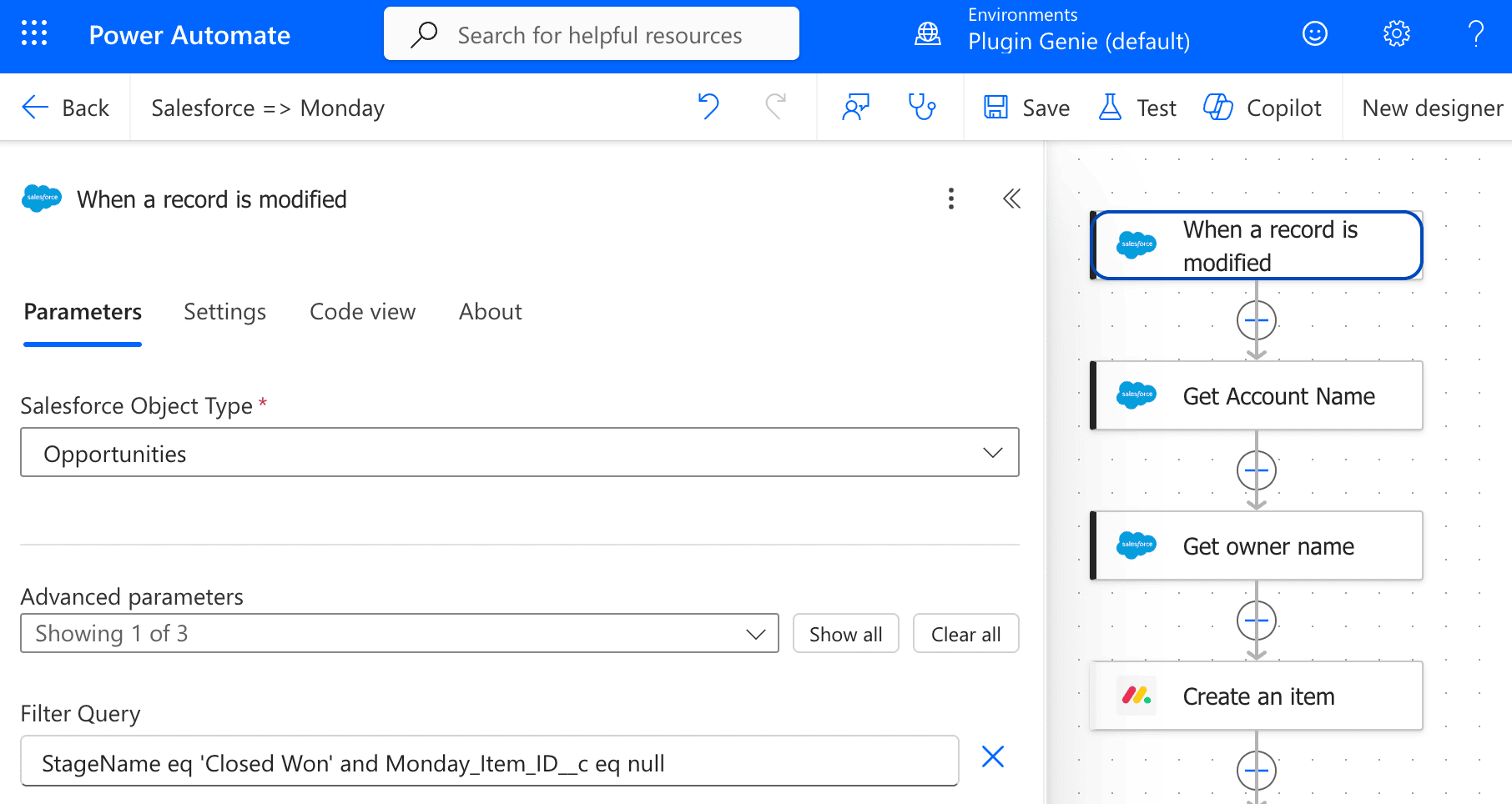
Create a new automated cloud flow in Power Automate and add the Salesforce trigger "When a record is modified". Set the object type to Opportunities, then open the advanced parameters and add a filter so the flow only runs for the deals you care about.
| Field | Value |
|---|---|
| Object type | Opportunities |
| Filter Query | StageName eq 'Closed Won' and Monday_Item_ID__c eq null |
The first half of the filter picks out Closed Won deals. The second half skips any deal that has already been sent to monday. Step 4 relies on that second check, so don't leave it out.
Step 2: Look up the names
The trigger gives you the opportunity's details, but for the account and the deal owner it only includes IDs, like
0015g00000XyZaBAAV. Nobody wants that on the board or in a Teams message, so add two Salesforce
"Get record" actions to turn them into names.
| Action | Object type | Record ID |
|---|---|---|
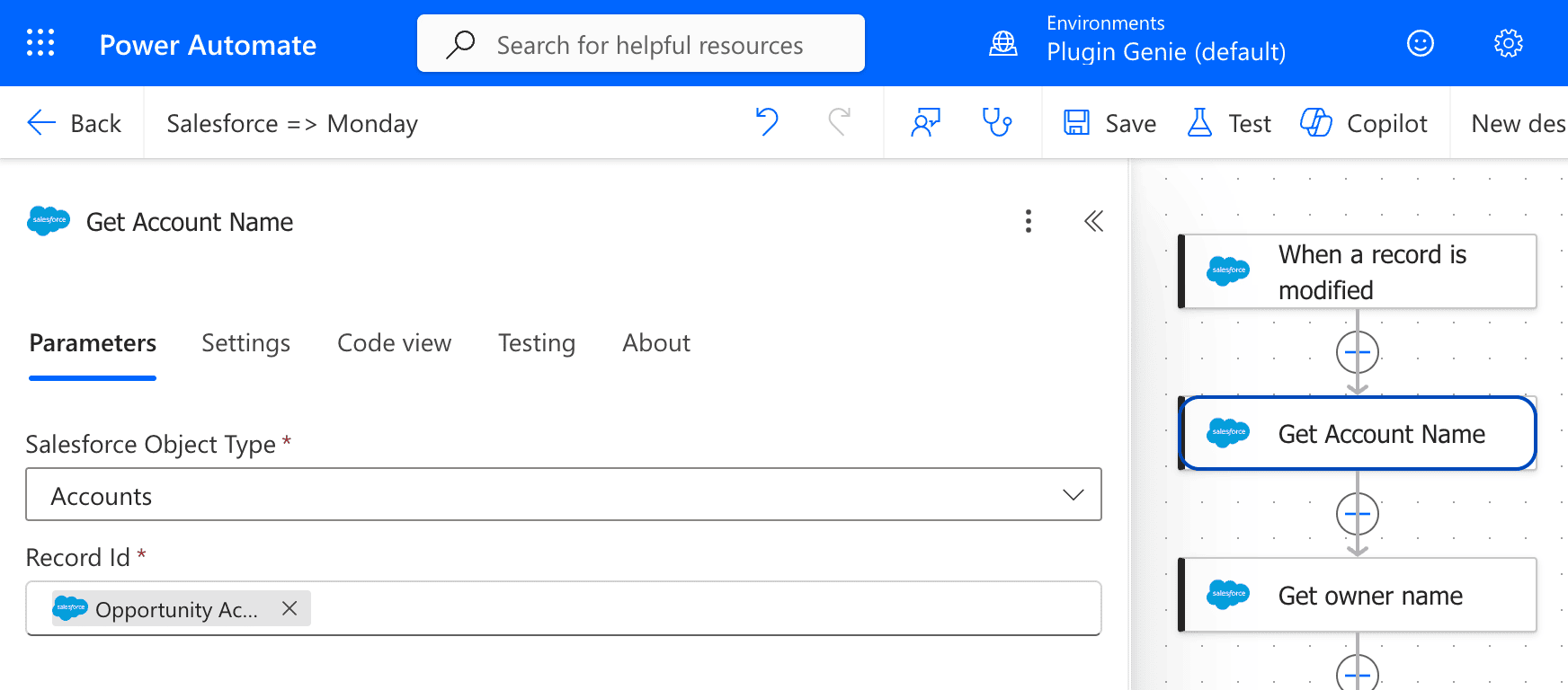
| Get Account Name | Accounts | Account ID (from trigger) |
| Get owner name | Users | Owner ID (from trigger) |
Rename the two actions Get Account Name and Get owner name so they're easy to tell apart in the next steps. The account name comes from Get Account Name, and the owner's name comes from the User Full Name field of Get owner name.
Step 3: Create the onboarding item
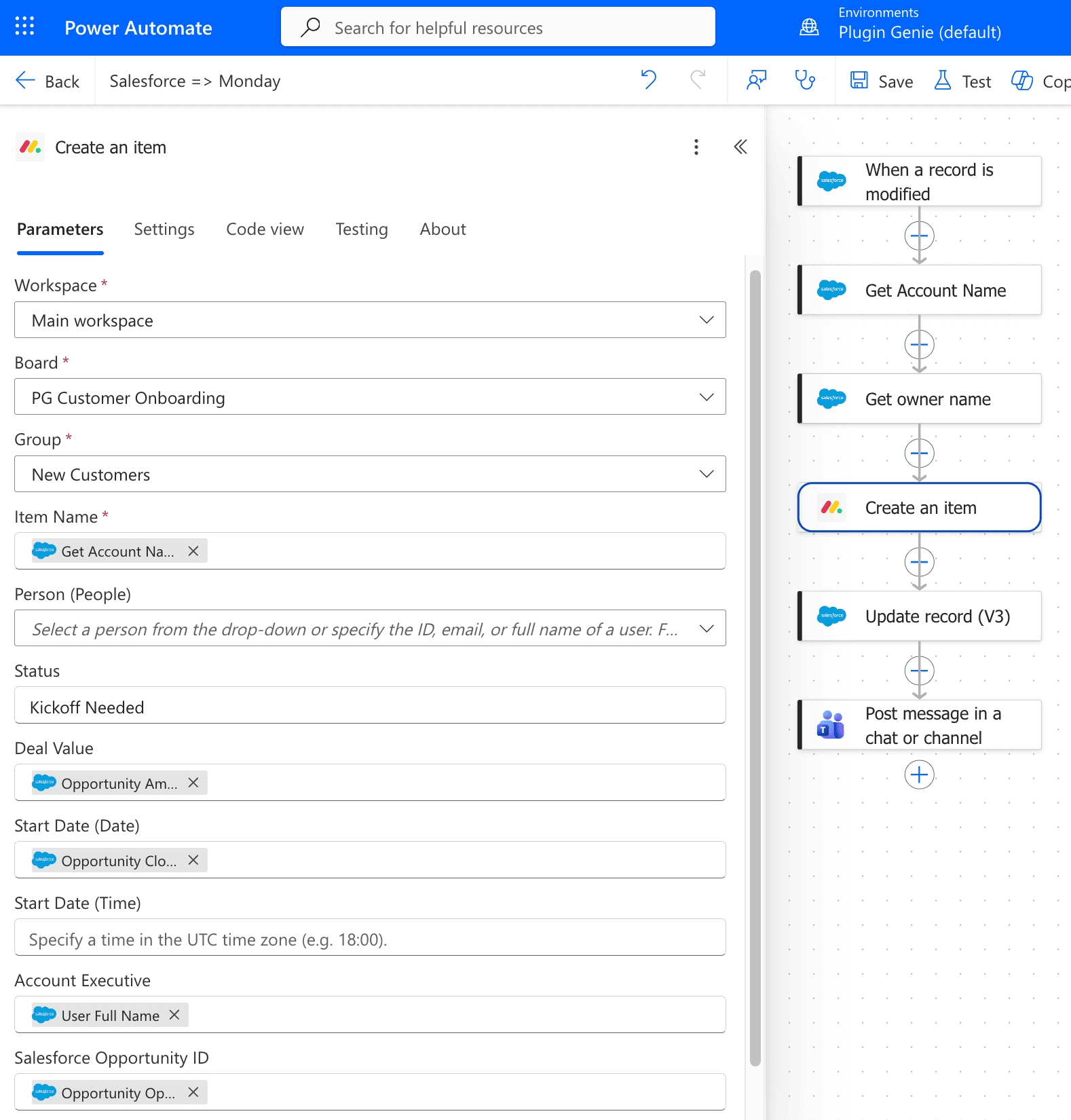
Add the monday action "Create an item" (provided by Plugin Genie). Pick your workspace, the onboarding board, and the group new customers should land in, then fill in the columns from the earlier steps.
| Field | Value |
|---|---|
| Workspace | Main workspace |
| Board | PG Customer Onboarding |
| Group | New Customers |
| Item name | Account Name (from Get Account Name) |
| Deal Value | Amount (from trigger) |
| Start Date | Close Date (from trigger) |
| Account Executive | User Full Name (from Get owner name) |
| Salesforce Opportunity ID | Opportunity ID (from trigger) |
| Status | Kickoff Needed |
Step 4: Write the item ID back
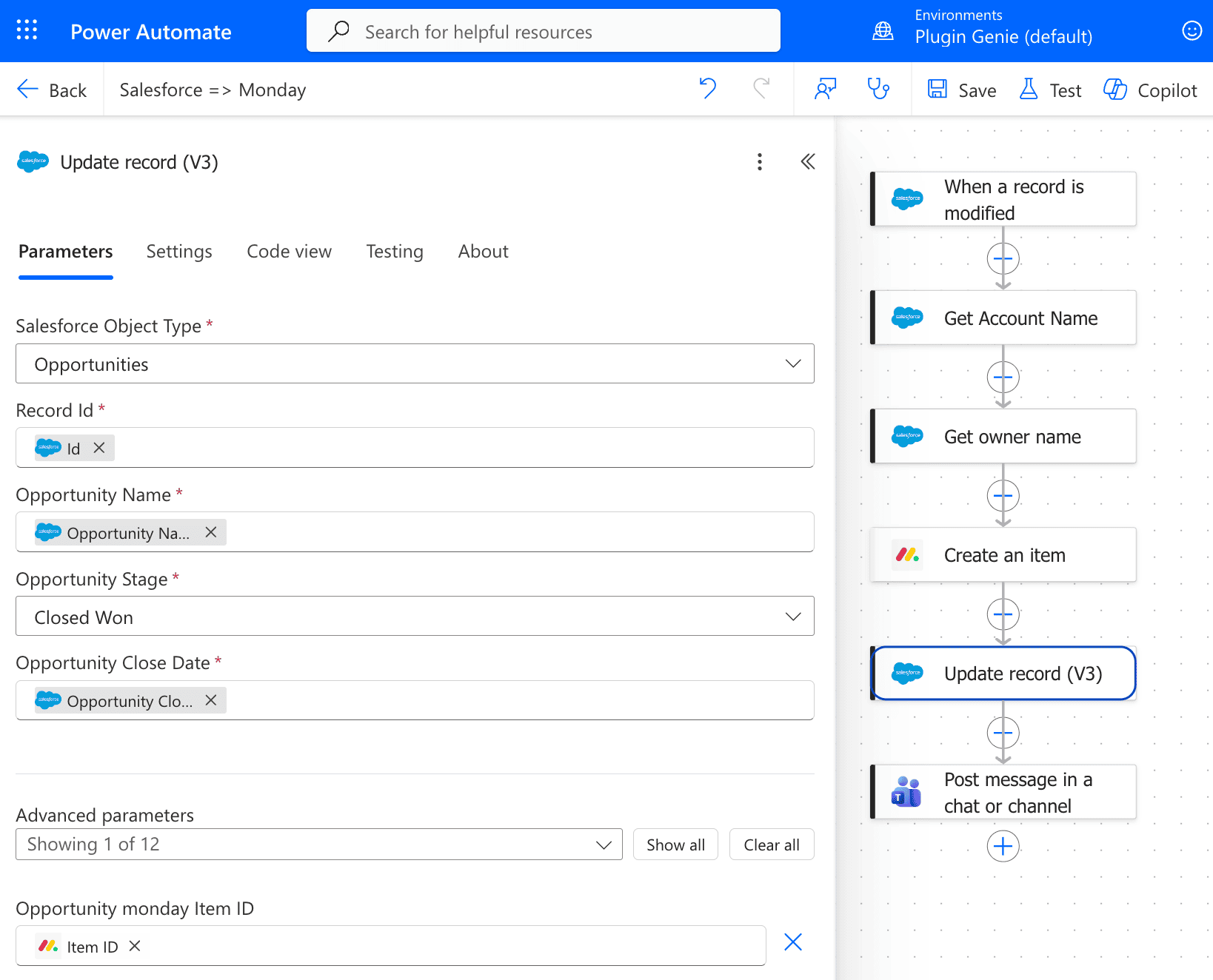
Add the Salesforce action "Update record (V3)" to stamp the new monday item's ID onto the opportunity it came from. The action asks for the opportunity's name, stage, and close date, so pass the current values straight through from the trigger. The Opportunity monday Item ID field is under Advanced parameters.
| Field | Value |
|---|---|
| Object type | Opportunities |
| Record ID | Opportunity ID (from trigger) |
| Opportunity Name | Opportunity Name (from trigger) |
| Opportunity Stage | Closed Won |
| Opportunity Close Date | Opportunity Close Date (from trigger) |
| Opportunity monday Item ID | Item ID (from Create an item) |
This step is what keeps the flow from creating duplicates. The trigger runs whenever an opportunity changes, so without it, every later edit to a Closed Won deal would create another onboarding item. Once the ID is written back, the filter from step 1 no longer matches the deal, so it's handled once and only once. The write-back itself is also a change to the opportunity, and the same filter stops that from setting the flow off again.
As a bonus, anyone looking at the opportunity in Salesforce can see that onboarding has started.
Step 5: Tell the team in Teams
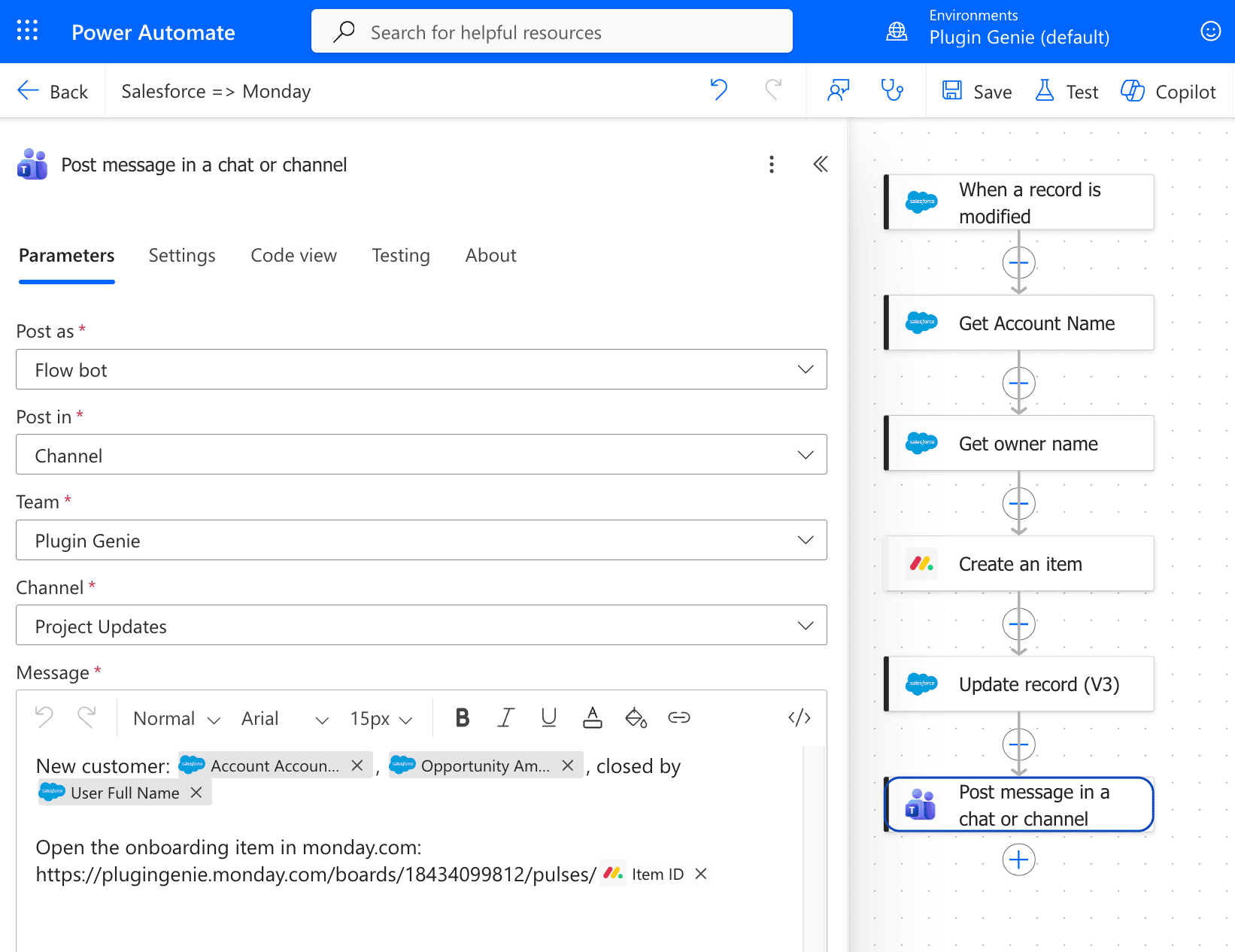
Add the Microsoft Teams action "Post message in a chat or channel" and post it to the onboarding team's channel.
| Field | Value |
|---|---|
| Post as | Flow bot |
| Post in | Channel |
| Team / Channel | Plugin Genie / Project Updates |
| Message | New customer: Account Name, Amount, closed by User Full Name, with a link to the item |
For the link, use your board's address followed by /pulses/ and the Item ID from step 3, for example
https://yourcompany.monday.com/boards/1234567890/pulses/ plus the Item ID.
Save the flow, then move a test opportunity to Closed Won. Within a few minutes the new item appears on the board, and the onboarding channel gets its message.
Worth knowing: this trigger polls. It checks Salesforce every few minutes rather than firing the instant the deal closes, so give it a little time before deciding something is wrong. It's also best to wait a minute or two after saving the flow before you test, so the trigger has done its first check.
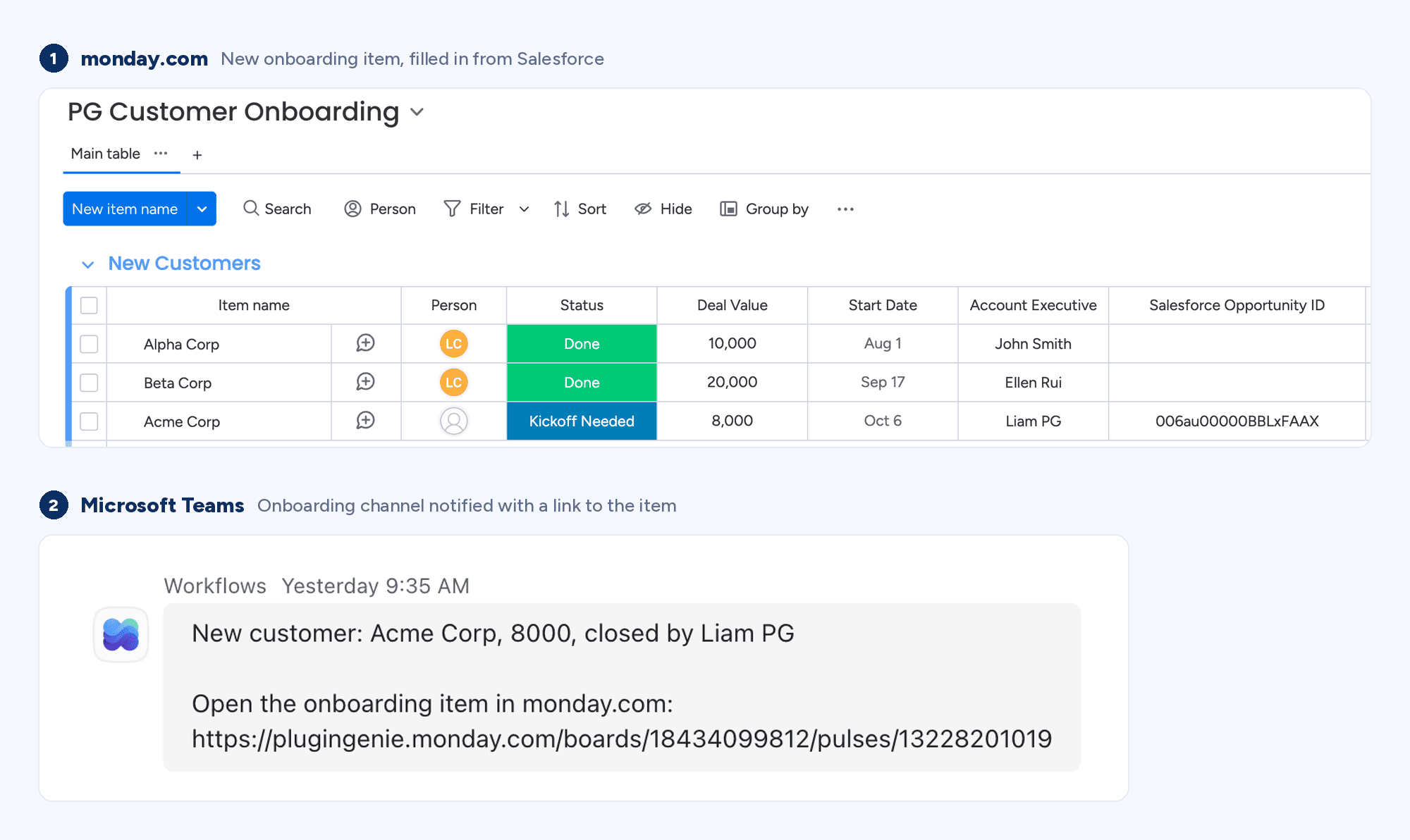
That's the whole flow.
What this gets you
Once the flow is running, closing a deal and starting onboarding become the same moment.
| Before | After | |
|---|---|---|
| Starting onboarding | When someone remembers to send the email | The moment the deal is marked Closed Won |
| The deal details | Retyped by hand from an email | Filled in from Salesforce, exactly |
| Telling the team | A message someone has to write | Posted in Teams automatically, with a link |
| Knowing it's started | Ask the onboarding team | The monday Item ID is on the opportunity |
Other handoffs that work the same way
The pattern is the same anywhere work moves from your CRM to a team that runs in monday. Usually all you change is the filter and the board.
Closed Won to finance. Create an item on a billing board so finance can set up invoicing the day the deal closes, with the amount and terms already filled in.
Urgent cases to an escalation board. When a high-priority case is opened in Salesforce, add it to the board your product or engineering team works from, and post it to their channel.
Renewals to customer success. When a renewal opportunity is created, add it to the customer success board so the team can start planning the conversation early.
Getting started
You'll need:
- An active monday.com account with the Microsoft Power Automate app installed from the marketplace
- At least one Power Automate Premium licence, since Salesforce and monday.com are both premium connectors
- Power Automate Cloud, as the desktop version isn't supported
- A Salesforce user that can read and edit opportunities, and the monday Item ID custom field
- A Text column and a Kickoff Needed status on your onboarding board
- A Teams channel where your onboarding team already works
Everything in this guide is built with dropdowns, so there is no code to write. Plugin Genie comes with a 14-day free trial.
Need help that the documentation doesn't cover? Reach out to our support team — we're happy to help.